

Files to PDF (Advanced)
Files to PDF (Advanced) is a free online tool for images to pdf — no sign-up and no daily limit. Use the tool below in your browser, then download or copy the result when you are done.
Files to PDF (Advanced) Online Workspace
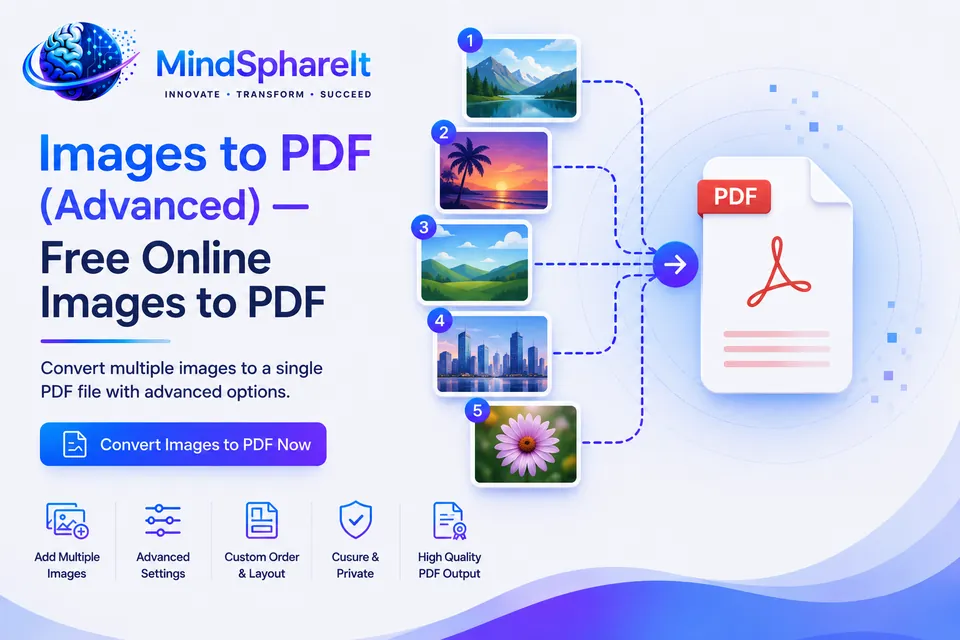
How to Use Files to PDF (Advanced)
- Select or drag and drop your PDF document into the Files to PDF (Advanced) workspace above.
- Configure your preferred options (such as compression level, page range, or conversion settings).
- Click the action button to process your document instantaneously in your browser.
- Preview your document and download the optimized PDF file to your device.
Files to PDF (Advanced) Features & Capabilities
- Free images to pdf with no sign-up
- Works in your browser on desktop and mobile
- No install required for the core workflow
- Clear steps and practical FAQs
- Related tools in the same category
What Files to PDF (Advanced) Does
Files to PDF (Advanced) helps you finish images to pdf without installing desktop software. It runs directly in your browser so you can start immediately on any device.
Use it for everyday free images to pdf online work, testing, or preparing files to share with others. That is useful when you need a quick result and do not want an account wall.
Capabilities & Supported Formats
Files to PDF (Advanced) is engineered to handle standard formats and inputs required for PDF workflows. The interface provides instant visual feedback, clear controls, and fast client-side performance.
Because the tool operates directly in your browser without mandatory accounts, you can test inputs, preview outputs, and export final results without workflow interruptions.
Free to use with no sign-up
Files to PDF (Advanced) is free for everyday images to pdf work. There is no email gate and no install requirement for the core workflow.
Use it on desktop or mobile when you need free images to pdf online, then leave as soon as the job is done.
Why people choose Files to PDF (Advanced)
Files to PDF (Advanced) focuses on a clean browser workflow instead of a heavyweight app. You get a practical result for images to pdf without creating an account.
If you already use other PDF tools, stay on ToolSphare and move between related utilities without bouncing across different sites.
Tips before you start
Use the clearest source file or text you have, especially when quality or formatting matters. Try the default result first, then adjust settings only if you need a different output.
For privacy, prefer tools that can stay in the browser when possible, and avoid uploading highly confidential material to any web app.
Files to PDF (Advanced) Frequently Asked Questions
Is Files to PDF (Advanced) free to use?
Yes. Files to PDF (Advanced) is free on ToolSphare for images to pdf with no account required for the core workflow.
Do I need to create an account?
No. Open the tool, finish the job, and leave — no email or password required.
How to convert images to pdf?
Use the tool below: add your input, run it, then download or copy the result. It covers images to pdf in your browser without installing software.
Is images to pdf safe?
Files to PDF (Advanced) is built for everyday images to pdf use. Prefer browser-based processing when available, and avoid uploading highly confidential files to any web tool.
Where is my file processed?
Many tools run in your browser so the file stays on your device. When a tool needs the server, uploads are validated and removed after processing.
Does it work on mobile?
Yes. Use Chrome, Safari, Firefox, or Edge on phone or desktop. Large files are usually faster on Wi‑Fi.
Can I use Files to PDF (Advanced) without signing up?
Yes. free images to pdf online works without an account. Open the page, run the tool, and save your result.
How do I report a problem?
Use the Contact page with the tool name, browser, and steps to reproduce. A short screenshot helps us fix issues faster.
